

Nao
Server Manager & Developer
- Thread Author
- #2
 Windows 11 Debloat & Optimization Guide (2025)
If you're looking to speed up your Windows 11 system, reduce background resource usage, and boost overall performance, this guide is for you. We’ll walk through essential steps to safely debloat Windows, disable unnecessary features, and apply performance tweaks — all without breaking the system.
 Step 1: Debloat Windows 11
Windows 11 comes with a lot of preinstalled apps and telemetry that most users don’t need. Here's how to clean it up safely.
Use a Debloating Script:
- Download the Debloater
- Run the Tool
Extract and execute Run.bat
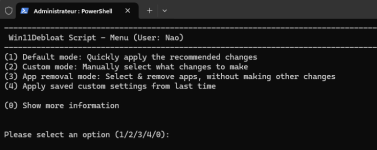
You can use the Default Mode if you don’t use most of the pre-installed apps. If you accidentally remove something you need, you can reinstall it from the Microsoft Store. For more control, use Custom Mode to pick what to remove.
 Step 2: Disable Useless Startup Apps
- Press Ctrl + Shift + Esc to open Task Manager.
- Go to the Startup tab.
- Disable apps you don't need on startup (e.g., OneDrive, Cortana, Spotify, Teams).
 Step 3: Disable GPU Hardware Acceleration in Certain Apps
Some apps like Discord, Chrome, or Spotify use Hardware Acceleration, which can cause stutter or higher GPU usage on lower-end systems.
Disable in Discord:
- Open Discord.
- Go to User Settings → Advanced.
- Turn off Hardware Acceleration.
- Restart Discord.
Disable in Chrome:
- Go to chrome://settings/system.
- Toggle "Use hardware acceleration when available" to OFF.
- Restart Chrome.
 Step 4: Disable Telemetry & Background Tracking & Notifications
- Press Win + I to open Settings
- Go to Privacy & Security > Diagnostics & Feedback
Set Diagnostic Data to Required only
- Disable Tailored Experiences
- Set Feedback Frequency to Never
- Go to System > Notifications
Turn OFF notifications or set them to Do Not Disturb
 Step 5: Set Power Plan to High Performance
- Press Win + X → Power Options.
- Click Additional power settings.
- Select High Performance
 Step 6: Tweak for Gaming
- Go to Settings > Gaming > Game Bar → Turn OFF
- Go to Settings > Gaming > Game Capture → Turn OFF
- (Optional) If you have an NVIDIA GPU, disable screen recording settings in the NVIDIA Control Panel
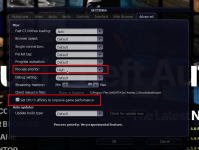
Step 7: Set CPU Affinity in MTA (Multi Theft Auto)In MTA:SA settings:
- Go to Settings > Advanced
- Set Process Priority to High
- Uncheck: "Set CPU 0 Affinity"
Note: This setting was introduced to improve performance, but in many cases, it doesn't apply correctly unless set after launching the game fully.
 Step 8: Use a Custom Script for CPU Affinity
If your CPU has more than 4 cores, you must try this.
Follow the tutorial created by ZJK to apply a custom script for setting CPU 0 affinity properly.
 Conclusion
By following this guide, you've taken important steps to streamline Windows 11, reduce unnecessary background usage, and enhance overall system performance — especially for gaming or low-end hardware. Debloating, disabling startup apps, and applying the right performance settings can significantly improve responsiveness and stability without compromising essential functionality.
Remember:
- You can always reinstall removed apps from the Microsoft Store.
- Revisit these settings after major Windows updates, as some may reset.
- Customize your tweaks based on your specific needs and hardware.
Last edited by a moderator:
