

ZJK
Developers
- Thread Author
- #2
How to improve performance & FPS stability 

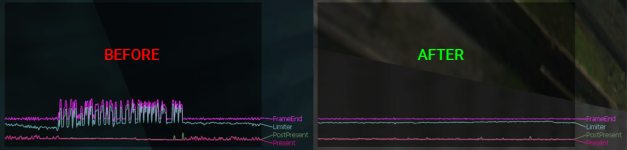
Why This Happens?
Most system processes and background tasks are assigned to CPU 0 (which refers to the first core or the first logical processor (thread), depending on whether your CPU supports Hyper-Threading). This means that the game has to share CPU time with other processes, which can cause stutters and FPS drops.
Additionally, over the years, Windows 11 updates have introduced performance issues, further affecting FPS. (source)
How To Fix That?
The solution is to make the game run on other available threads, reducing competition with other processes (or at least minimizing it).
First, make sure you have at least 4 logical processors (threads) on your CPU, which is equivalent to 2 physical cores.
(Trying this method with less than 4 logical processors might cause your game to crash. But you can still try and find out)
To check this, follow these steps:
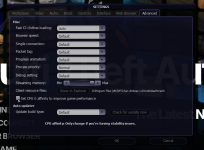
 First of all, you'll need to disable MTA's CPU affinity implementation of this fix and restart your game, as their solution doesn't work well.
Method 1 (EASY): Using Task Manager ─ Manual
This method is the easiest, however it resets every time you close the game. So, you need to apply it right after launching MTA.
Method 2 (INTERMEDIATE): Using custom .bat file ─ Semi-Manual/Automatic
This method allows you to create a simple executable that will launch MTA and automatically disable CPU 0, so you won’t have to manually adjust it every time.
Link it to MTA desktop shortcut
If you'd like to have your MTA desktop shortcut automatically perform this, simply link it to launch this .bat file instead of launching MTA.
Follow these steps to do that:
NOTE: For more advanced users, if you want to be able pin the shortcut to your taskbar/start menu, you can create a custom shortcut for your .bat file and then convert it to an .exe using Bat To Exe or the iexpress.exe tool in System32. This won’t be covered in this tutorial, but I might add it in the future.
Method 3 (EASY / NOT FREE): Using Process Lasso (Permanent)
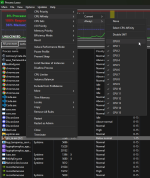
Process Lasso is a great way to make this fix permanent, unfortunately it's not free. (still showing it for interested people)
"Process Lasso Free vs. Pro Features. * = only “Always” rules are Pro, “Current” settings can be changed."
Additional Tweaks
To further improve performance, consider enabling these Windows settings, and take advantage of other useful tweaks:
[*]Update GPU drivers: Make sure your graphics card drivers are up to date for better performance and stability.
Conclusion
Many players report smoother performance and suppression of FPS drops after applying this CPU affinity fix. It might still depend on your CPU and system configuration, so test it yourself and see if it helps!
Also, keep in mind these methods and additional tweaks also work for many other games. I'm not an expert myself, and there might be other tweaks or methods that work even better. It's up to you to research further.
Don't hesitate to comment if you have other/better solutions!
Some people have shared similar tutorials in the past (thanks to them), but these tutorials were not detailed enough and didn’t gain much visibility, so I’m posting this clear tutorial to help more players get rid of FPS drops/stuttering on MTA.
Why This Happens?
Most system processes and background tasks are assigned to CPU 0 (which refers to the first core or the first logical processor (thread), depending on whether your CPU supports Hyper-Threading). This means that the game has to share CPU time with other processes, which can cause stutters and FPS drops.
Additionally, over the years, Windows 11 updates have introduced performance issues, further affecting FPS. (source)
How To Fix That?
The solution is to make the game run on other available threads, reducing competition with other processes (or at least minimizing it).
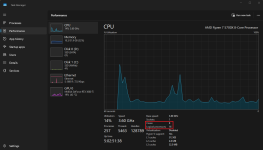
First, make sure you have at least 4 logical processors (threads) on your CPU, which is equivalent to 2 physical cores.
(Trying this method with less than 4 logical processors might cause your game to crash. But you can still try and find out)
To check this, follow these steps:
- Open Task Manager (CTRL + SHIFT + ESC).
- Go to the Performance tab.
- Click on CPU, and look at the information at the bottom.
First of all, you'll need to disable MTA's CPU affinity implementation of this fix and restart your game, as their solution doesn't work well.Method 1 (EASY): Using Task Manager ─ Manual
This method is the easiest, however it resets every time you close the game. So, you need to apply it right after launching MTA.
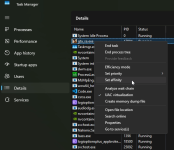
- 1. Launch MTA.
- 2. Open Task Manager (CTRL + SHIFT + ESC).
- 3. Go to the Details tab.
- 4. Find "gta_sa.exe" in the list.
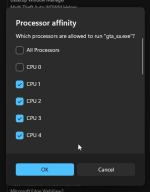
- 5. Right-click it and select Set affinity.
- 6. Uncheck CPU 0, leaving the others enabled.
- 7. Click OK and you are done!
Method 2 (INTERMEDIATE): Using custom .bat file ─ Semi-Manual/Automatic
This method allows you to create a simple executable that will launch MTA and automatically disable CPU 0, so you won’t have to manually adjust it every time.
- 1. Create a text file. (or download this file, but just make sure MTA path is correct)
- 2. Paste this code (make sure to edit the MTA path at the top if it's different from yours)
Code:
@echo off
setlocal

start "" "C:\Program Files (x86)\MTA San Andreas 1.6\Multi Theft Auto.exe"

:WAIT_FOR_GTASA
tasklist | find /i "gta_sa.exe" >nul
if errorlevel 1 (
    echo [DEBUG] GTA:SA not found, retrying...
    timeout /t 2 /nobreak >nul
    goto WAIT_FOR_GTASA
)

echo [DEBUG] GTA:SA detected

timeout /t 15

:: Get process ID of gta_sa.exe
for /f "tokens=2 delims=," %%A in ('tasklist /FI "IMAGENAME eq gta_sa.exe" /FO CSV /NH') do set PID=%%A

:: Check if the process exists
if "%PID%"=="" (
    echo gta_sa.exe is not running.
    pause
    exit
)

:: Uncheck Core 0 using PowerShell
powershell -Command "& { $p = Get-Process -Id %PID%; $p.ProcessorAffinity = ($p.ProcessorAffinity -band 0xFFFFFFFE) }"

echo Core 0 unchecked for gta_sa.exe
timeout /t 3
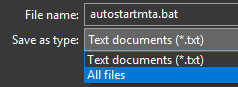
exit- 3. Save it as "autostartmta" (or as you want) with the .bat extension. (Make sure "All files" is selected before saving)
- 4. You’re all set! Now, by opening this file, MTA will automatically launch, and once the GTA:SA process is detected, it will disable CPU 0 for you.
Link it to MTA desktop shortcut
If you'd like to have your MTA desktop shortcut automatically perform this, simply link it to launch this .bat file instead of launching MTA.
Follow these steps to do that:
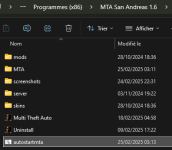
- 1. Place your "autostartmta.bat" file inside your MTA installation folder.
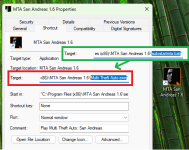
- 2. Right-click on your MTA desktop shortcut, click on Properties, and modify the target path to point to your .bat file instead.
Simply replace "Multi Theft Auto.exe" by "autostartmta.bat". (Be careful to leave the " at the end of the path)
- 3. You are done! Now, simply launch MTA from your desktop shortcut as usual.
If you want to make sure it worked, refer to Method 1 to see if CPU affinity has been changed in process list.
NOTE: For more advanced users, if you want to be able pin the shortcut to your taskbar/start menu, you can create a custom shortcut for your .bat file and then convert it to an .exe using Bat To Exe or the iexpress.exe tool in System32. This won’t be covered in this tutorial, but I might add it in the future.
Method 3 (EASY / NOT FREE): Using Process Lasso (Permanent)
Process Lasso is a great way to make this fix permanent, unfortunately it's not free. (still showing it for interested people)
"Process Lasso Free vs. Pro Features. * = only “Always” rules are Pro, “Current” settings can be changed."
- 1. Download and install Process Lasso.
- 2. Launch MTA.
- 3. Open Process Lasso and find "gta_sa.exe" in the process list.
- 4. Right-click it, go to CPU Affinity > Always > Set affinity.
- 5. Uncheck CPU 0.
Additional Tweaks
To further improve performance, consider enabling these Windows settings, and take advantage of other useful tweaks:
- Game Mode (Windows): Go to Settings > Gaming > Game Mode and turn it on.
- Power Management (Windows): Set your power plan to High Performance in Control Panel > Power Options.
- Close background apps: Some apps consume a lot of resources and could also cause stuttering, such as:
Browsers: Chrome, Brave, Firefox etc..
- Discord: Disabling Hardware Acceleration might help in some cases.
- Steam: Turn it OFF or make sure auto-updates are disabled, they can cause lags as they write into your storage at the same time.
[*]Update GPU drivers: Make sure your graphics card drivers are up to date for better performance and stability.
Conclusion
Many players report smoother performance and suppression of FPS drops after applying this CPU affinity fix. It might still depend on your CPU and system configuration, so test it yourself and see if it helps!
Also, keep in mind these methods and additional tweaks also work for many other games. I'm not an expert myself, and there might be other tweaks or methods that work even better. It's up to you to research further.
Don't hesitate to comment if you have other/better solutions!
Last edited by a moderator:

